Overview
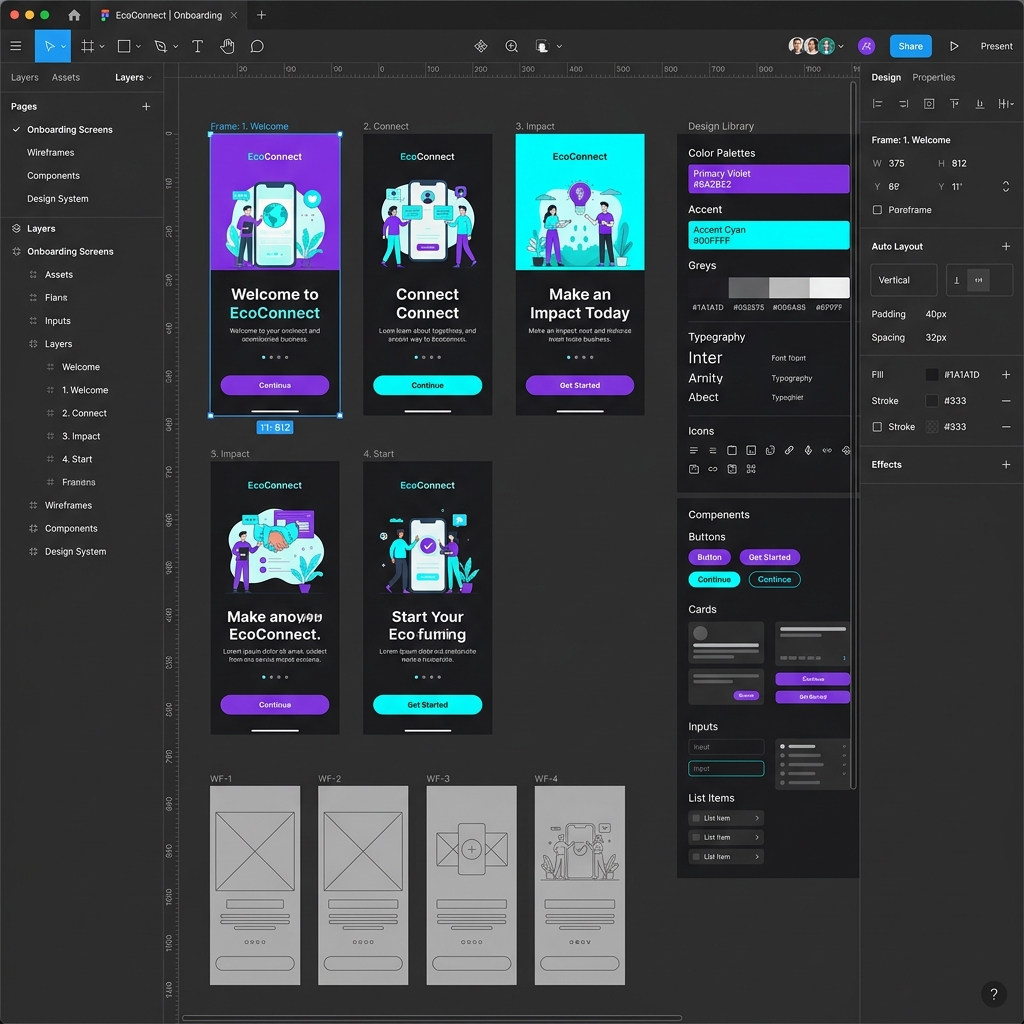
Figma is the industry-standard tool for UI/UX designers globally. The secret to learning it quickly is understanding that you only use about 20% of its features 80% of the time. Beginners often slow down by trying to memorize every obscure plugin or complex vector tool. This guide will show you how to zero in on the critical features that actually get you hired in 2026.
Table of Contents
- Key Takeaways
- Detailed Breakdown of Core Features
- Time Investment & Salary Expectations
- Factors Influencing Your Learning Curve
- Step-by-Step Figma Learning Plan
- Real-World Application Example
- Common Mistakes and Myths
- Advanced Tips for Faster Workflows
- FAQs
- Editorial scope
Key Takeaways
Ignore vector art initially
You are designing interfaces, not drawing logos. Stick to standard shapes, text, and images.
Learn 5 shortcuts
Memorize F (Frame), T (Text), V (Move), Shift+A (Auto Layout), and Opt/Alt+Drag (Duplicate).
Replicate first
Recreating good design trains your eye for spacing and sizing much faster than a blank canvas.
Embrace Auto Layout
Auto Layout isn't optional anymore. Learn it in week one to save hours of manual resizing.
Detailed Breakdown: What to Learn First
The fastest way to learn Figma is to isolate the features that make up modern product design. You should follow a clear UI UX roadmap for beginners to keep your study time structured.
1. Frames and Shapes (The Basics)
Unlike old tools that used artboards, Figma uses Frames. A Frame is a container that can hold other frames and shapes. Understand how the Properties Panel on the right side controls dimensions, colors, borders (strokes), and effects (shadows).
2. Auto Layout (The Game Changer)
Auto Layout is how Figma mimics real-world code (CSS Flexbox). When you wrap elements in Auto Layout, they align perfectly. If you delete a line of text, the surrounding box shrinks automatically. This is essential for building responsive buttons and lists.
3. Components & Variants (The System)
Never draw the same button twice. Create one button, turn it into a Component, and duplicate it. If you change the master component's color, all duplicates (instances) update instantly. Variants let you define states, like 'Hover' or 'Disabled' for that same component.
4. Prototyping (The Flow)
Static screens don't win interviews. The Prototyping tab lets you draw "noodles" between frames, defining what happens when a user taps a button. Focus on basic 'Navigate to' and 'Smart Animate' actions to build realistic Figma projects for beginners.
Time Investment & Salary Data
How much time should you actually dedicate? Here's a realistic expectation based on a part-time study schedule (10 hours/week).
| Learning Stage | Time to Master | Core Goal |
|---|---|---|
| Basic Tools & Navigation | 3 to 5 Days | Navigate canvas, use basic shortcuts, draw simple wireframes. |
| Auto Layout & Responsive Design | 1 to 2 Weeks | Create complex components like navbars and responsive cards. |
| Design Systems & Variants | 2 to 3 Weeks | Build a reusable mini-library for a personal project. |
| Prototyping & Variables | 2 Weeks | Make high-fidelity clickable flows with variables. |
Learning the tool is a stepping stone to a rewarding career. In India, a solid grasp of UI tools paired with strong UX logic can open doors to roles with starting salaries around ₹4 Lakhs to ₹7 Lakhs annually for freshers, depending on location and portfolio strength.
Is the ISS UI/UX Design programme right for you?
Review the curriculum for research, interface design, and portfolio projects. Compare the learning format, weekly commitment, fees, and support with your goals before applying.
View UI/UX Design curriculum →Factors Influencing Learning Speed
- Copywork Frequency: Rebuilding live apps screen-by-screen speeds up your learning by 5x compared to guessing spacing on a blank canvas.
- Shortcut Memorization: Your speed in Figma directly correlates with how often your left hand stays on the keyboard.
- Prior Tool Experience: If you've used Sketch, Adobe XD, or even advanced Canva, your transition will be much faster.
- Using Community Files: Don't start from scratch. Duplicate files from the Figma Community to reverse-engineer how experts build their files.
Step-by-Step Learning Plan
- Day 1-2: Interface Familiarity. Open Figma. Press F and draw a mobile frame. Add shapes, text, and images. Get comfortable zooming (Cmd/Ctrl + Scroll) and panning (Hold Spacebar).
- Day 3-5: The Copycat Phase. Screenshot an app like Airbnb. Paste it into Figma. Lower the opacity to 30%, lock the layer, and literally trace over it with rectangles and text to understand real-world sizing.
- Week 2: The Auto Layout Challenge. Stop manually resizing things. Practice building a navigation bar and a profile card using only Auto Layout (Shift + A).
- Week 3: Build a UI Kit. Create a small library of 5 buttons, 3 text inputs, and a few icons. Turn them all into Components.
- Week 4: Your First Original Project. Combine your UI kit and Auto Layout skills to design a 3-screen flow (e.g., a login sequence) and link them in the Prototype tab. This can become your first piece for a UX case study.
Real-World Application Example
Let's look at how a beginner approaches a task vs. how a fast-learning pro does it.
Designing a 'Submit' Button
A pure beginner draws a rectangle, puts text on top, and groups them. A fast learner uses a text layer, hits Shift+A for Auto Layout, adds a fill color, and sets padding.
- Beginner: Manual resizing every time the text changes.
- Pro Workflow: Button resizes automatically when text changes to "Submit Application".
Common Mistakes and Myths
- Myth: You need a paid plugin for everything. Reality: Figma's native features are incredibly powerful. Use plugins only for data population (like Unsplash) or accessibility checks.
- Mistake: Designing loosely. If your spacing is 13px here and 17px there, developers will be frustrated. Stick to a 4pt or 8pt grid system.
- Mistake: Using groups instead of frames. Groups just bound the elements inside them. Frames act as containers that can clip content and use Auto Layout. Always prefer Frames.
- Myth: Tools equal skills. Knowing Figma is great, but combining it with top AI tools for UI UX designers and solid UX reasoning is what makes you a true designer.
Advanced Tips for Faster Workflows
- Rename your layers properly. Press Cmd/Ctrl + R to bulk rename layers. Clean files are professional files.
- Use the slash naming convention. Naming an icon
Icon / Home / Filledautomatically creates folders in your asset panel. - Master the 'Space bar' trick. When dragging an element into an Auto Layout frame, hold the spacebar to ignore the layout and place it absolutely.
FAQs
How many days does it take to learn Figma?
You can learn the basic tools in 2 to 3 days. However, mastering advanced features like auto layout, components, and variables takes 3 to 4 weeks of consistent practice.
Can I learn Figma on my own for free?
Yes, Figma has a generous free tier for beginners. You can use their official YouTube channel, community files, and free tutorials to build your foundational skills.
Is Figma easy for beginners with no design background?
Yes, Figma's interface is highly intuitive. Most beginners can draw shapes and layout text within hours. The challenge is learning product design reasoning, not just the software itself.
What should I design first in Figma?
Start by copying an existing app you use daily, like Spotify or WhatsApp. Recreating a familiar interface teaches you about spacing, typography, and layout structure better than a blank canvas.
Is coding required to use Figma?
No coding is required. Figma is a visual design tool. While understanding CSS and HTML helps when handing off designs to developers, you don't need to write code to create UI.
Why is auto layout so important in Figma?
Auto layout ensures your designs are responsive. It automatically adjusts padding, alignment, and spacing when content changes, saving you hours of manual resizing.
Do I need a paid Figma account to build a portfolio?
No, the free Starter plan is usually enough for a beginner portfolio. It gives you 3 Figma files, 3 FigJam files, and unlimited personal drafts.
Editorial scope
This article provides an editorial learning guide, not a survey of hiring outcomes. Examples illustrate approaches to practice; they do not predict employment or pay.
Conclusion / Next Steps
Learning Figma fast requires discipline, not just talent. Stick to the basics: master Frames, Auto Layout, and Components. Replicate high-quality designs before attempting to invent your own, and practice consistently.
Your next step should be structured application. Consider enrolling in a comprehensive UI/UX design course to get mentor feedback, or jump straight into building your first project to test your new skills.
Want personalized guidance on mastering design tools and building a portfolio? Talk to our admissions team to see if our cohort is right for you.
Talk to Admissions →