Overview
Learning Figma is easier when each feature solves a small design problem. Start with a frame, add content, organise the layout, and connect a few screens. This guide introduces that workflow; keep practising with different content and screen sizes as you progress.
We won't just cover what the buttons do. We'll explore how professional designers use Figma. This means understanding how to structure files, why following a proper UX roadmap matters before you even open the tool, and how to build scalable design systems.
Table of Contents
- Key Takeaways
- Navigating the Figma Workspace
- Frames vs. Shapes: The Foundation
- Mastering Auto Layout (The Most Important Skill)
- Components, Variants, and Variables
- Prototyping and Interaction Design
- Essential Keyboard Shortcuts
- Common Mistakes Beginners Make
- Frequently Asked Questions
Key Takeaways
Frames over Groups
Always use Frames instead of Groups for layout. Frames can have grids, auto layout, and clipping.
Auto Layout is Mandatory
Do not manually push pixels. Auto Layout is the only way to build truly responsive, production-ready designs.
Componentize Early
If you use a button, card, or icon more than once, turn it into a Component. This saves hours of rework.
Learn Keyboard Shortcuts
Shortcuts differentiate beginners from pros. Learning them will double your design speed.
1. Navigating the Figma Workspace
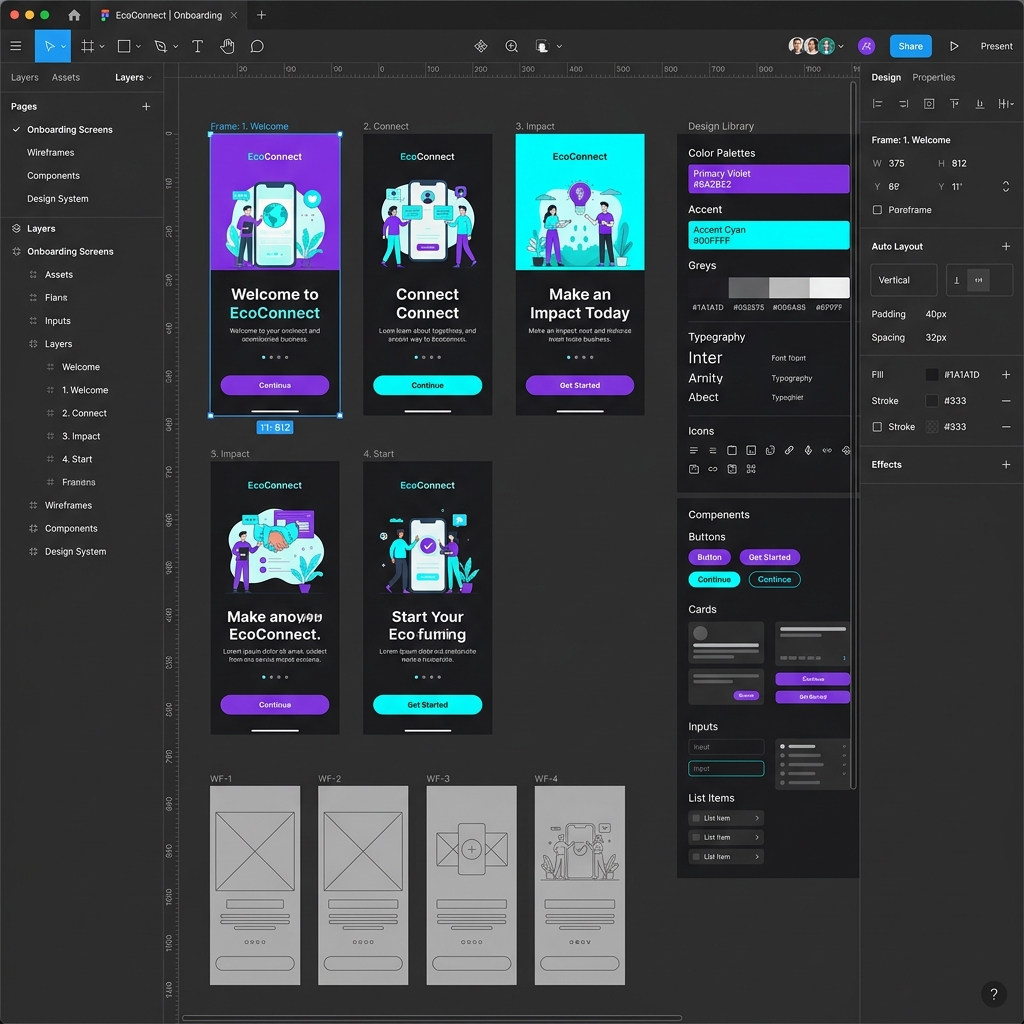
When you create a new design file, Figma presents a deceptively simple interface. It is divided into three main areas:
- The Left Sidebar (Layers & Assets): This is your document's hierarchy. It shows every frame, group, and element in your file. The Assets tab is where you will find your saved components and library items.
- The Canvas: The infinite space in the middle where you do the actual designing.
- The Right Sidebar (Properties Panel): This panel dynamically changes based on what you have selected. It controls alignment, sizing, colors (Fill/Stroke), typography, effects, and export settings. It also houses the Prototype and Inspect tabs.
Before diving into high-fidelity screens, it's highly recommended to map out your user flows. Consider reading up on the UX design process to understand why research precedes visual design.
2. Frames vs. Shapes: The Foundation
A classic beginner mistake is drawing a rectangle (Shape) to serve as the background of a mobile screen. In Figma, you must use Frames.
Think of a Frame as a container with superpowers. Unlike a simple rectangle or a group, a Frame can:
- Act as a screen for prototyping.
- Hold an Auto Layout system.
- Contain Layout Grids (columns/rows) for structural alignment.
- Clip its contents (hide anything that overflows the boundary).
To create a frame, press F and look at the right sidebar. Figma provides preset sizes for phones, tablets, and desktops. Start with the 'iPhone 16' or 'Desktop' preset.
3. Mastering Auto Layout (The Most Important Skill)
If you only take one thing away from this complete Figma tutorial, let it be this: Learn Auto Layout. Auto Layout allows your designs to adapt dynamically. When you add more text to a button, the button grows automatically. When you delete a card from a list, the list collapses.
Auto layout is heavily inspired by CSS Flexbox. To apply it:
- Select two or more objects (or a frame).
- Press Shift + A (or click the plus icon next to Auto Layout in the right sidebar).
- Adjust the direction (horizontal or vertical).
- Set the spacing between items.
- Configure the padding (horizontal and vertical margins).
You can also control how child elements behave within an Auto Layout frame. They can be set to Hug contents (wrap tightly around inner elements) or Fill container (expand to fill available space). Mastering these settings is critical before applying for any UI UX jobs for freshers in India.
4. Components, Variants, and Variables
Efficiency in Figma comes from reusability. If you find yourself copying and pasting a button 20 times, you are doing it wrong.
Components
Select your designed button and press Cmd/Ctrl + Option/Alt + K. It turns purple. This is now a Master Component. If you duplicate it, you create Instances. Change the color of the Master Component, and all Instances update instantly.
Variants
What if you need a primary button, a secondary button, and a hover state? Instead of creating three separate components, you use Variants. Variants group related components together, allowing you to swap between them using a simple dropdown in the properties panel.
Variables (New in Figma)
Variables allow you to store design tokens—colors, numbers, strings, and booleans. For instance, you can define a variable called brand-primary and apply it to hundreds of elements. If you want to create a Dark Mode, variables make it achievable with a single click. This level of system thinking is a hallmark of a successful UI/UX career.
Is the ISS UI/UX Design programme right for you?
Review the curriculum for research, interface design, and portfolio projects. Compare the learning format, weekly commitment, fees, and support with your goals before applying.
View UI/UX Design curriculum →5. Prototyping and Interaction Design
Designing static screens is only half the job. Prototyping brings your designs to life. Switch to the Prototype tab in the right sidebar.
- Select an element (like a button) and drag the circular node that appears to another screen to create a connection.
- Define the trigger: On Click, While Hovering, or After Delay.
- Define the animation: Instant, Dissolve, or Smart Animate.
Smart Animate is Figma’s magic feature. It looks for matching layer names across two frames and smoothly animates the differences in size, position, and color. It's fantastic for creating micro-interactions.
6. Essential Keyboard Shortcuts
Professionals rarely use their mouse to navigate menus. Memorize these to speed up your workflow significantly:
| Action | Mac Shortcut | Windows Shortcut |
|---|---|---|
| Create Frame | F | F |
| Create Component | Cmd + Option + K | Ctrl + Alt + K |
| Add Auto Layout | Shift + A | Shift + A |
| Duplicate | Cmd + D | Ctrl + D |
| Zoom to Fit | Shift + 1 | Shift + 1 |
| Deep Select | Cmd + Click | Ctrl + Click |
If you want to practice your skills, check out our guide on the best Figma projects for beginners.
7. Common Mistakes Beginners Make in Figma
- Ignoring naming conventions: Leaving layers named "Rectangle 43" makes collaboration a nightmare. Always name your frames and critical layers.
- Not using Styles or Variables: Hardcoding colors and fonts across 50 screens means you have to manually update 50 screens if a brand color changes.
- Overusing Groups instead of Frames: As mentioned, Groups are fragile. Frames provide structural integrity.
- Focusing on visuals over user flow: Figma makes it easy to create beautiful things, but without solid UX thinking, they are useless. Read up on the difference between UI and UX to keep your priorities straight.
8. Frequently Asked Questions
Is Figma completely free for beginners?
Yes, Figma offers a robust free Starter plan that is more than enough for beginners learning UI/UX design. You can create unlimited personal files and collaborate with others, which is ideal for building your first portfolio case studies.
How long does it take to learn Figma?
You can learn the basics of Figma in a weekend, but mastering advanced features like auto layout, variants, variables, and complex prototyping usually takes 3-4 weeks of consistent practice.
Should I learn Figma or Adobe XD?
Figma is the clear industry standard in 2026. Most product teams and design agencies have moved to Figma due to its real-time collaboration, auto layout, and powerful component system. Start with Figma.
Do I need coding skills to use Figma?
No, you do not need any coding skills to design in Figma. However, understanding basic CSS concepts like flexbox will make learning Figma’s auto layout much easier, as the logic is nearly identical.
Can I use Figma on Windows?
Yes! Because Figma is primarily a web-based application, it works perfectly on Windows, macOS, and even Linux through a web browser. They also offer dedicated desktop apps for Windows and Mac for better performance.
How is Figma different from FigJam?
Figma is a design tool used for creating high-fidelity user interfaces and interactive prototypes. FigJam is a digital whiteboard tool within the Figma ecosystem, used for brainstorming, user journey mapping, and low-fidelity wireframing.
What are the best Figma projects for beginners?
The best beginner projects involve solving real user problems. Designing a login screen, a mobile e-commerce checkout flow, or an onboarding sequence are great ways to practice auto layout and component usage.
Editorial scope
This article provides an editorial learning guide, not a survey of hiring outcomes. Examples illustrate approaches to practice; they do not predict employment or pay.
Conclusion / Next Steps
Learning Figma is a journey from understanding basic shapes to orchestrating complex, responsive design systems. Start small. Learn keyboard shortcuts, force yourself to use Auto Layout on everything, and build reusable components.
Once you are comfortable with the tool, the real challenge begins: solving user problems. Consider exploring the best UI/UX design courses in India or exploring our own ISS UI / UX Design program to elevate your Figma skills with real-world product logic and mentorship.
Want to build a portfolio that stands out? Talk to our admissions team to see how our project-based curriculum can turn your Figma skills into a career.
Talk to Admissions →Practise with a card that has changing content
Create a card with a title, description, and button. Apply Auto Layout, then replace the title with a longer one and narrow the frame. Check spacing, wrapping, and button width. Turn the card into a component only after its layout behaves as intended.
Reference: Figma’s Auto Layout guide.